| Troubleshooting Indago |
| If you are having difficulty in performing a download onto your Indago unit it is advisable to refer to the checklist in Section A first before contacting us. |
| If you are still unable to perform a download after following the checklist below then please send an email to support@snooper.eu stating the nature of your difficulty. To expedite your enquiry please supply as much detail as possible including your contact details, serial number, PC operating system, error codes and any other relevant information. One of our technicians will reply as soon as possible. |
| Alternatively you can contact our Technical Helpline on 0330 232 2020. |
| This troubleshooting guide is in two sections; Section A is in the form of a checklist that will assist you with resolving common download problems. Section B consists of a few possible reasons and possible solutions to error messages that may be displayed by the operating system or the software whilst you are trying to perform a download. |
| SECTION A |
| 1. Have you registered your Indago unit? |
| You will not be able to download the AURATM database unless the Indago is registered. If the unit has not been registered a message will appear on the software informing you that the device is not enabled. To register your unit click here. |
| 2. Is the Indago connected to an AC mains power supply? |
| The Indago needs to be switched on BEFORE connecting it to the PC. The Indago does not receive any power via the USB cable and must be powered from the mains. Please use the AC mains adapter supplied with your unit and connect to the socket marked DC 5V on the back. To switch the unit ON push the 'Batt. ON/OFF' switch located on the underside of the unit to the 'ON' position, then press and hold the standby power switch on the left hand side of the unit for 2 seconds. Whilst the Indago software is loading a start-up display will be shown for just a few seconds and then a 'Safety Information Screen' will be displayed. At this point connect the Indago to the PC. |
| 3. What operating system are you using on your computer? |
|
The Indago download software will only work on
the following Windows operating systems: Windows 2000, Windows Xp, Windows Vista and Windows 7. WE CANNOT PROVIDE SUPPORT FOR WINDOWS 95, 98, 98SE AND WINDOWS XP (64BIT) PC systems. Apple Macintosh systems are not supported. To determine which operating system you have on your computer (Win 2K and XP): a) Right click on the 'My Computer' icon on your desktop and select 'Properties' from the drop down menu. b) When the 'System Properties' dialogue box opens the 'General' tab is selected by default. Under the heading 'System' the operating system is displayed. If you do not have a 'My Computer' icon on your desktop you can find this information by going to the 'Control Panel' and double left clicking the 'System' icon. The 'System Properties' window will then be displayed as outlined in 'b' above. Windows Vista and Windows 7: a) Click 'Start', then right click 'Computer' and left click 'Properties' b) b) The window that is displayed will detail your operating system. |
| 4. Is the USB cable supplied with the Indago connected correctly? |
| Please make sure the USB lead has a secure connection to the PC and is fully plugged in. Ensure the smaller connector is plugged into the USB socket on the underside of the unit. Only plug the USB lead into the Indago once you see the 'Safety Information Screen' after turning the Indago 'ON'. |
| 5. Have you installed the Indago download software on your PC? |
| If you have not installed the software you will not be able to perform a download to your Indago. Once the software is installed there will be a new icon in your system tray which is located at the bottom right hand side of your desktop near the system clock. The icon is similar to the one below: |

|
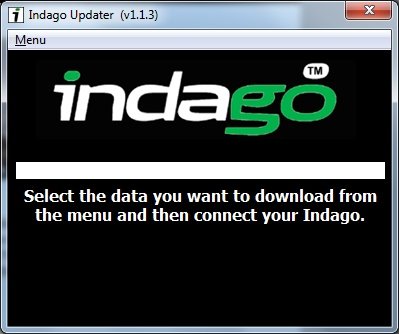
| Please check to see if you have the latest version of the software by visiting the software page. To check what software version you have, double left click the Indago icon in your system tray, look at the top of the window that opens and you will see the version number in brackets e.g. |
|
| In this illustration the version number is (v1.1.3) |
| 6. Have you connected the computer to the internet? |
| The download software has to download a file directly from our server and this can only be done if an internet connection is present. Therefore make sure that your PC is connected to the internet by either establishing a dial up connection or signing in to your broadband internet account before you begin to download the database to your Indago. |
| 7. What version of Internet Explorer / Netscape Navigator are you using? |
|
The software will only operate if you have Internet Explorer or
Netscape Navigator 4.5 or above. To check what version of Internet Explorer you have; open your browser, click on the 'Help' menu and select 'About Internet Explorer'. This should now display what version you currently have installed. If you have a version older than 4.5 (e.g. 4.0), open your browser, click on 'Tools' and select 'Windows Update'. This will take you to the Microsoft website where you can download the latest version of internet explorer. To check what version of Netscape Navigator you have: open the browser, click on the 'Help' menu and select 'About Netscape Navigator'. |
| SECTION B |
| This section is for explaining possible reasons and solutions to problems you may be experiencing whilst trying to download the AURA™ database onto your Indago. If, after completing all the checks in Section A, you are still experiencing difficulty or have received an error message please read through the following: |
| 1. ERROR MESSAGE: "Initialisation Error" or "Error 429: Active X Cannot Create Object" |
| If the Indago Updater program results in either of the above error messages and you are up to date with your Windows Critical Updates and Service Packs then you may need to install Windows Script 5.6 for Windows 2000 and XP from Microsoft which isn't included in the Windows Update Website. Once downloaded you will need to install it. |
| 2. ERROR MESSAGE - 'The device has not been enabled yet.' |
| Please refer to Step 1 in section A for further details. |
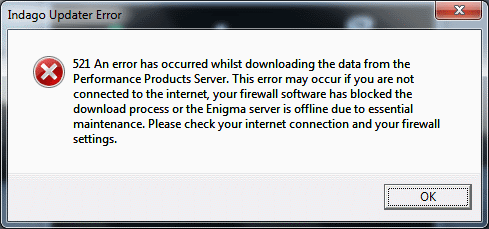
| 3. ERROR MESSAGE - 'There was a problem connecting to the Performance Products server…' |
| If you get an error message similar to the one shown below |
|
| This normally means that there is something blocking communication between the download software, most typically a firewall, and the AURATM server. Windows XP, Vista and 7 are supplied with Firewall software. Depending upon which Service Pack you have for Windows XP you will need to access the firewall settings and allow access for the software. We recommend updating to Service Pack 2 as this will allow easier configuration. Please refer to Step 3 in Section A for how to determine what Service Pack your windows XP Operating System has. |
| If you do have a Firewall on your computer the Indago Updater software may appear to stop and it is at this point that your Firewall software will inform you that the Indago Updater software is trying to access the internet. |
| Please make sure that you grant/allow/permit access through the Firewall. |
| Please read the messages supplied by your Firewall software carefully before choosing your option. If you do not allow the program access to the internet through the Firewall, the download process will fail. |
| Note: If you block the program from access to the internet and then disable your firewall software the program will remain blocked. In these circumstances you will need to go into the firewall settings and look for the program access menu and change the permissions for the program from 'Blocked' to 'Allowed'. |
| If no message was prompted by the firewall software uninstall and then re-install the software and perform a download again. |
| Warning: We do not recommend disabling your firewall software in order to perform a download to your Indago, nor can we provide advice on how to alter the settings on third party software, nor can we be held responsible for any action taken by the PC user that makes the PC more vulnerable to malicious viruses, software and computer hackers. Any changes made to the PC firewall settings are solely at the PC user's discretion. We would recommend contacting the third party software manufacturer for further information of how to configure the firewall software. |
| Return to main page |